WooCommerce to Shopify: The SEO Redirect Checklist (Don't Lose Your Rankings)
TL;DR — Quick Answer
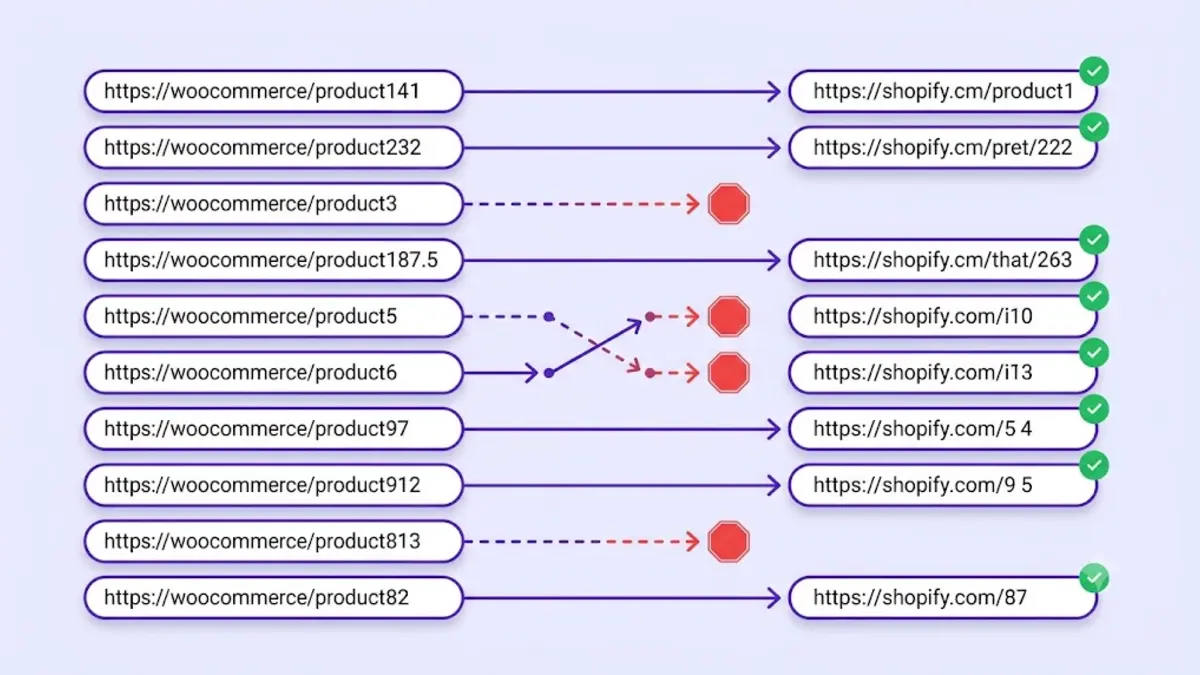
WooCommerce and Shopify build their URLs differently, so almost every product and category address changes the day you migrate. Miss a redirect and that page 404s — taking its rankings and backlinks with it. The fix: recover your old URLs, point each one straight at its closest Shopify match (never the homepage), update your internal links, then resubmit your sitemap and check the results.
Most WooCommerce to Shopify migrations don't lose rankings because Shopify is bad at SEO.
They lose them because thousands of perfectly good URLs suddenly disappear.
Yesterday, Google knew where every product lived. Today those same addresses return 404s, and every ranking and backlink they earned starts leaking away. It's the most common reason stores lose traffic after migrating.
The good news? This is almost entirely preventable. You just have to tell Google your new address — one redirect at a time.
The URLs That Change
WooCommerce and Shopify don't just use different slugs. They use different path prefixes, so the address of nearly every page shifts the moment you move:
| Page type | WooCommerce | Shopify |
|---|---|---|
| Product | /product/product-name/ |
/products/product-name |
| Category | /product-category/name/ |
/collections/name |
| Sub-category | /product-category/parent/child/ |
/collections/child |
| Blog post | /blog/post-name/ or /?p=123 |
/blogs/news/post-name |
| Tag / archive | /product-tag/name/ |
/collections/name (or none) |
Every line in this table is traffic you can either keep or accidentally throw away.
And here's what catches people off guard. If your store has 2,000 products, this isn't 2,000 redirects.
It's usually quite a bit more.
Products. Collections. Blog posts. Tags. Old promotional pages.
They all add up.
There's one more trap worth knowing about: Shopify flattens nested categories, so WooCommerce sub-categories rarely map one-to-one. Those are the exact paths migration apps quietly skip.
So the real problem isn't that Shopify changes your URLs.
It's that Google still remembers the old ones.
The Redirect Checklist
Keep it simple. Every old URL should point to exactly one place: the closest matching page on your Shopify store.
No detours. No chains. No homepage shortcuts.
- Find every old URL before it's forgotten. You can't redirect a page you don't remember existed. Pull the full list of addresses your old store had indexed — your old XML sitemap, a Search Console export, and the Wayback Machine's archived crawl are the fastest ways to get it back.
- Start with products. They're usually the easy part. Send each
/product/name/to its Shopify/products/name. If the handles survived the move, it's a simple/product/→/products/swap. If they changed, match by product name. - Then tackle categories. This is where migrations get messy. Point each
/product-category/name/at the right/collections/name. For the nested categories Shopify flattened, send both the old parent and child URLs to the single collection that now holds those products. - Set the redirects in Shopify. Settings → Navigation → URL Redirects. Add pairs by hand, or bulk-upload a CSV (
Redirect from, Redirect to) if the list is long. Shopify sets the 301 for you. - Skip the chains. Point each old URL straight at its final destination. Think of a redirect like forwarding your mail after a move. One forwarding address works. Three usually don't. Every extra hop is another chance to lose ranking power.
- Leave the homepage out of it. Redirecting every old URL to the homepage feels convenient. Google disagrees. It treats that as a soft 404 and throws the page's rankings away. Your homepage isn't a lost-and-found box for broken URLs.
- Fix your internal links. Old menus, product descriptions, and blog posts often still link to
/product/paths. Update them. A page you only reach through a redirect gets crawled less and passes less value. - Resubmit and watch. Drop your new sitemap into Google Search Console, then keep an eye on the Pages report for "Not found (404)" and "Page with redirect." Click a handful of old URLs yourself — each should make one clean jump to a live page.
The Mistakes We See Over and Over
Here's the one that gets almost everyone.
The products get redirected. The categories don't.
Six months later the store owner is still wondering why organic traffic never came back — while the category pages that held most of the backlinks quietly 404 in the background.
We've seen it dozens of times.
A couple more that keep showing up:
- Chains through the migration app. Some import tools sneak in their own redirect, turning every clean 301 into a two-hop detour.
- The homepage dump. The most damaging shortcut of all. It wipes the ranking history of every URL it touches.
- Trusting a live-site checker. The sneakiest one — and it deserves its own section.
Why Ordinary Tools Miss the Real Problem
Here's the catch.
After migration, the URLs you're missing don't exist anywhere on your Shopify store anymore. They're gone.
And that's exactly why normal crawlers never find them. A crawler can only follow what's still alive. It walks your current store, sees healthy pages, and reports back that everything looks fine.
Meanwhile, Google keeps visiting URLs your crawler never even knew existed.
Those are the ones bleeding your traffic.
Our free SEO Scanner works backwards — here's exactly how. It rebuilds your old URL inventory from the Wayback Machine, checks every address against your live Shopify store, and highlights the ones leaking SEO value — each with a suggested redirect target. No store access, no API keys. Run a free scan and you'll have your redirect list in a couple of minutes.
Frequently Asked Questions
Q: Does Shopify redirect WooCommerce URLs automatically? A: Unfortunately, no. Shopify only knows about URLs that live inside Shopify. It has no idea what existed on your old WooCommerce store, so every one of those redirects has to be created separately — by hand or by CSV.
Q: What happens to my old blog posts?
A: They move too. WooCommerce posts sit at /blog/post/ or /?p=123; Shopify puts them at /blogs/news/post. Redirect each one just like a product — old posts often carry backlinks you don't want to lose.
Q: Can Shopify handle thousands of redirects? A: Easily. You can bulk-import redirects by CSV, so even a huge catalog is manageable. The hard part was never the number of redirects — it's knowing which old URLs need one in the first place.
Related guides
Check your store for free
Find dead URLs, redirect chains, and broken links left over from your migration — using Wayback Machine data. No store access required.
Start Free Scan →Published: July 4, 2026 · Back to Insights
Share